Voice-controlled teleprompter for Mac: keep your place while speaking
By Zakaria Reziki · · 5 min read
A voice controlled teleprompter on Mac fixes the most common reading problem: losing your place. The text drifts ahead while you take a breath, or lags while you rush, and you end up hunting for the line or reaching for the trackpad in the middle of a take.
Why scrolling teleprompters lose your place
A timed teleprompter moves at one speed you set before you start. Real speech doesn't work like that. You slow down on a number you want to land, stop for a breath after a long sentence, and speed up through a line you know well. Each of those moments puts the text out of step with your mouth.
- Too fast: the line you need scrolls off the top while you're still saying it. You rush to catch up.
- Too slow: you finish a line and stare at text that hasn't moved. The pause shows on camera.
- Manual: you scroll yourself with the trackpad or arrow keys. It works, but it takes a hand and a glance away from the lens on every line.
Adjusting the speed mid-take doesn't solve it either. You're now doing two jobs: speaking and operating the prompter. Studio teleprompters get around this with a second person who scrolls for you. On a Mac, recording alone, you don't have one.
A teleprompter that follows your voice on Mac
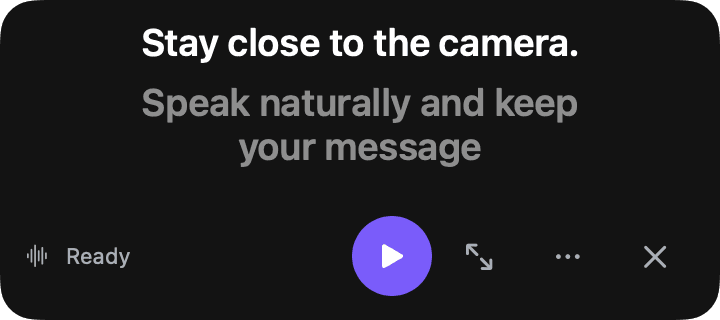
Cuey, a teleprompter for Mac that lives in the menu bar, turns the microphone into that second person with Voice Follow. In Follow mode, Cuey listens through the mic using Apple speech recognition, matches your words to the script, and advances when you reach the next line. If you pause, or step off the script to add a thought, it waits. When you come back to the script, it picks up from there.
Here's what we shipped this week.
Because it only moves when you do, there's no speed to pick and nothing to touch once you start. The prompt sits right under the camera by default, so your eyes stay near the lens. If you want the general mechanics of speech tracking, the guide to voice-activated teleprompters covers how they work and what to ask of any of them.
On privacy: Cuey doesn't store audio or transcripts, and it uploads no telemetry. Recognition runs through Apple's speech framework. If on-device recognition isn't available for your language, Apple's service may process the audio.
Set up voice control in 3 steps
- 1
Paste your script
Copy your script, then press ⇧⌘V to quick-paste it into Cuey from the clipboard. Short lines work best: one idea per line gives Follow mode clear places to advance. - 2
Switch to Follow and allow access
Choose Follow mode. The first time, macOS asks for microphone and speech-recognition permission. Allow both, or Follow mode can't hear you. - 3
Start and just talk
Press ⇧⌘P. After the countdown (3 seconds by default), start reading. Press ⌥⌘Space to pause and resume, and ⌥⌘T to show or hide the prompt.
When voice control isn't the right mode
Speech tracking has honest limits. Plan for them rather than finding out mid-take.
- Noisy rooms. Background talk, music or a loud fan makes it harder to match your words. Record somewhere quiet, or switch to Read mode, which scrolls on a timer at a speed you set.
- Heavy improvisation. If most of what you say isn't in the script, Follow mode spends most of its time waiting. For loose talking points, Notes mode is a better fit: you step forward and back through points yourself.
- Live calls. Scripted openings and demos suit Follow. Q&A doesn't. The Zoom teleprompter setup for Mac shows how to mix Notes and Follow in one meeting.
Follow and Notes also show an estimated time remaining, based on 150 words per minute, so you can see how much script is left without counting lines.
One practical habit: do a 30-second test read before the real take. Read two lines, pause, add an unscripted sentence, then return to the script. You'll see exactly how the prompt waits and where it picks up, and you won't be learning that on camera.