How to keep your teleprompter hidden from screen share on Mac
By Zakaria Reziki · · 5 min read
You want your teleprompter hidden from screen share on Mac: the audience sees your slides, and your script stays with you. The reliable way to get there isn't a hidden app setting. It's choosing what you share. Here's how to do that in Zoom, Google Meet and Microsoft Teams, what happens with a full-screen share, and how to check before anyone joins.
Why a teleprompter shows up in your screen share
A screen share sends pixels. When you share your entire screen, the meeting app captures everything on that display: slides, notifications, the Dock, and every window floating above them. A teleprompter is just another window, so it goes out with the rest.
What doesn't work reliably is counting on an app to hide itself. macOS lets a window ask to be left out of screen captures, but capture apps don't all honour that request, and behaviour can change with macOS and app updates. No app can guarantee that every capture tool excludes its window. If something promises a teleprompter that is invisible in every share, test that claim yourself before a real call.
One thing is safe: your camera feed. It shows what the camera sees. A teleprompter window on your screen is not part of it.
How Cuey fits a screen-shared presentation
Cuey is a teleprompter for Mac that sits in a small window directly under your camera, above your other windows. You read your script with your eyes near the lens while your slides or demo run underneath. It's a window on your screen, not a camera effect, so it never appears in your video.
To be plain about it: Cuey does not hide itself from full-screen shares. Share your entire screen and Cuey is visible like any other window. We don't promise otherwise because macOS can't guarantee window exclusion across every capture app. Pair Cuey with a window or tab share and your audience sees only what you chose.
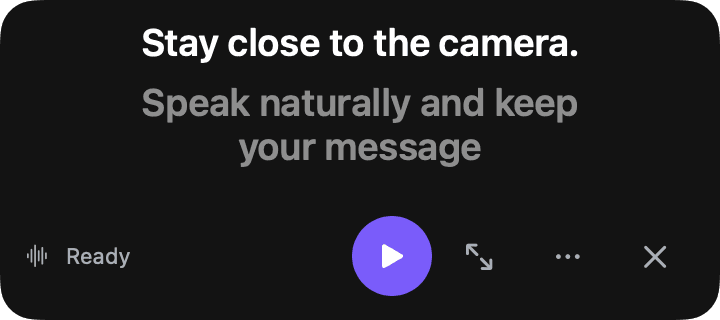
With Follow mode (Voice Follow) on, Cuey listens through your microphone and advances when you reach the next line. If you stop to answer a question, it waits for you to return to the script.
Screen share with a teleprompter on Mac: 3-step setup
- 1
Load your script and start the prompt
Copy your script, press ⇧⌘V to quick-paste it into Cuey, then ⇧⌘P to start. It opens under the camera by default. - 2
Share one window or tab, not your screen
In the meeting's share picker, choose the slides window, the app or the browser tab. Skip any option labelled screen, desktop or entire screen. - 3
Check what others see
Start a test meeting and join from a second device, or ask a colleague to describe their view. Confirm nothing from Cuey appears, especially where it overlaps the shared window.
Where the window option lives in each app
| App | Open the picker | Choose | Avoid |
|---|---|---|---|
| Zoom | Share (Share Screen in older versions) | The app window you present; hold Shift to pick more than one | The full screen or desktop thumbnail |
| Google Meet | Present now | A tab or A window | Your entire screen |
| Microsoft Teams | Share | A specific window | Your whole screen |
Sources: Zoom, Google Meet, Microsoft Teams. The first time you share, macOS may ask you to allow screen recording for the meeting app or your browser under System Settings > Privacy & Security. Presenting slides with speaker notes? The guide to presenting on a video call covers running Keynote and PowerPoint in a window.
 9:41
9:41Here's what we shipped this week.
If you have to share your entire screen
Sometimes a window share isn't enough, for example when a demo jumps between several apps. Three honest options:
- Use a second display. Put the apps you present on the external display and share only that display. Keep Cuey on the MacBook screen, under the camera you're using.
- Share part of the screen in Zoom. Zoom's Advanced tab has a Portion of screen option that shares only the area inside a green border. Keep the teleprompter outside it.
- Hide the prompt for that section. Click Cuey's menu bar icon and choose Hide Teleprompter (or press ⌥⌘Twhile Cuey is the active app) before you share. Show it again afterwards.
More on running a script in a Zoom call specifically: Cuey for Zoom.