How to use a teleprompter for Google Meet on Mac
By Zakaria Reziki · · 5 min read
You want a teleprompter for Google Meet on your Mac because Meet lives in a browser tab, and your notes live somewhere else: another tab, a doc in a second window, a sticky note. Every glance at them either pulls you away from the call or sends your eyes down and sideways on camera.
Why notes are awkward in Google Meet
Meet runs in the browser, so the natural place for notes is the tab next to it. Click over and your own view of the call disappears: you stop seeing faces and reactions while you hunt for the next point. Put the notes in a second browser window beside Meet instead, and your eyes travel sideways every time you check them. Sideways is the direction people notice most. Milton Chen's CHI 2002 work found viewers are an order of magnitude less sensitive to gaze below their eyes than to gaze left, right or above.
Down isn't free either. A 2025 study in the Journal of Vision found perceived eye contact peaks when you look about 2° below the lens. At 55 cm from the screen that is about 1.9 cm. The middle of a 14-inch MacBook Pro screen is about 10 cm below the camera, around 10°. A maximised Meet window puts faces and the grid there, and so does any doc you open full-size.
Size the browser window so faces sit high
Two free fixes help before any app: make the browser window shorter and drag it to the top of the display, so the tiles sit closer to the camera. Then pin the person you're talking to. Google's help page explains that you hover over a tile and click Pin, and can pin it “For myself only”, so one large face fills the top of the window instead of a grid spread across the screen.
A teleprompter that sits above the browser
Cuey is a teleprompter for Mac that lives in the menu bar and opens a small prompt window above everything else, including the Chrome or Safari window running Meet. Its default placement is Under Camera, so your current line sits in that 2 cm strip. Meet stays in its own tab, you never switch away, and nothing is installed in the browser. See how Cuey works with Google Meet.
 9:41
9:41Here's what we shipped this week.
For most Meet calls, use Notes mode. You paste your talking points and step through them one at a time with the ‹ › arrows, at your pace, so a question from someone else doesn't leave a script scrolling without you. If you have a word-for-word opening, Voice Follow listens and advances as you speak, and waits when you stop.
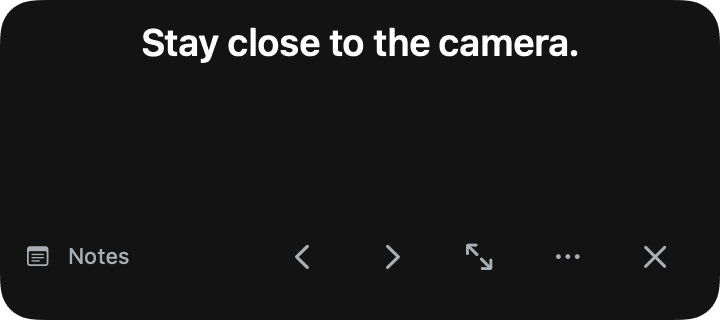
Cuey isn't part of your camera feed: it's a window on your screen, so the people in the call see you, not your notes.
Set it up in three steps
- 1
Paste your talking points
Copy your notes, one point per line, and press ⇧⌘V to quick-paste them into Cuey. Choose Notes mode. - 2
Keep it under the camera, shrink the browser
Leave the placement on Under Camera at Compact size. Resize the Meet window so it sits just below the prompt and pin the person you're speaking to. - 3
Start when the call starts
Press ⇧⌘P to start (a 3-second countdown runs by default) and step through points with ‹ ›. Press ⌥⌘T (or the Cuey menu bar icon) to hide Cuey when you just want to listen.
When you present in Meet
Google Meet lets you present “A tab”, “A window” or “Your entire screen”. Choose a tab or a window. Only that tab or window goes out, so anything else on your screen, a teleprompter included, isn't part of the share. Presenting a Chrome tab also shares that tab's audio by default, which suits a video in your slides. Google also suggests presenting a new window or a specific tab rather than the meeting window itself.
Choose “Your entire screen” and every window on that screen can be visible, Cuey included. If you need a full-screen share, move the slides to a second display and share only that one. More detail in our guide to keeping a teleprompter out of your screen share.
Tips and honest limits
- Keep each point to a few words. The strip under the camera is small, and short lines keep your eyes still.
- Look at faces when others talk. Eye contact matters most while you're speaking.
- Cuey needs macOS 14 Sonoma or later. It doesn't change anything inside Meet itself.